
What Is WordPress? A Business Guide for Choosing in 2026
What WordPress is, how it differs from WordPress.com, what you can build, pros and cons, costs, SEO, security, and how to choose for your business.
If you are planning a website, you will see WordPress in articles, agency reviews, and hosting packages often.
Some say WordPress is free. Some say you need a developer. Many recommend it for SEO and business websites.
Those explanations are only partly true.
WordPress is an open-source content management system (CMS) that lets you create, edit, and manage a website through a back-office dashboard — without rewriting the entire site yourself each time.
WordPress can power personal blogs, company sites, membership systems, and online stores. Whether it fits depends on your goals, budget, ability to maintain the site, and systems you need to connect.
This article explains what WordPress is, how it works, how WordPress.com and WordPress.org differ, pros and cons, and whether it is the right choice in 2026.
What is WordPress?
WordPress is software for building and managing websites. It started in 2003 as a blogging platform and grew into a CMS that supports many site types.
CMS stands for Content Management System — software that helps you manage site content through an admin screen, such as
- creating and editing pages
- writing articles
- uploading images and video
- organizing content categories
- building menus
- managing user accounts
- scheduling publication
- reviewing and reverting revisions
- extending features with plugins
Instead of writing new HTML every time you add a post, you log in, create content, and publish.
According to W3Techs as of August 2026, WordPress powers about 41.2% of all websites and 59.1% of sites where a CMS is detected.
That does not mean WordPress fits every project — but it shows a large ecosystem, developer base, and knowledge resources.
How does WordPress work?
WordPress sits between site administrators, the database, and the pages visitors see.
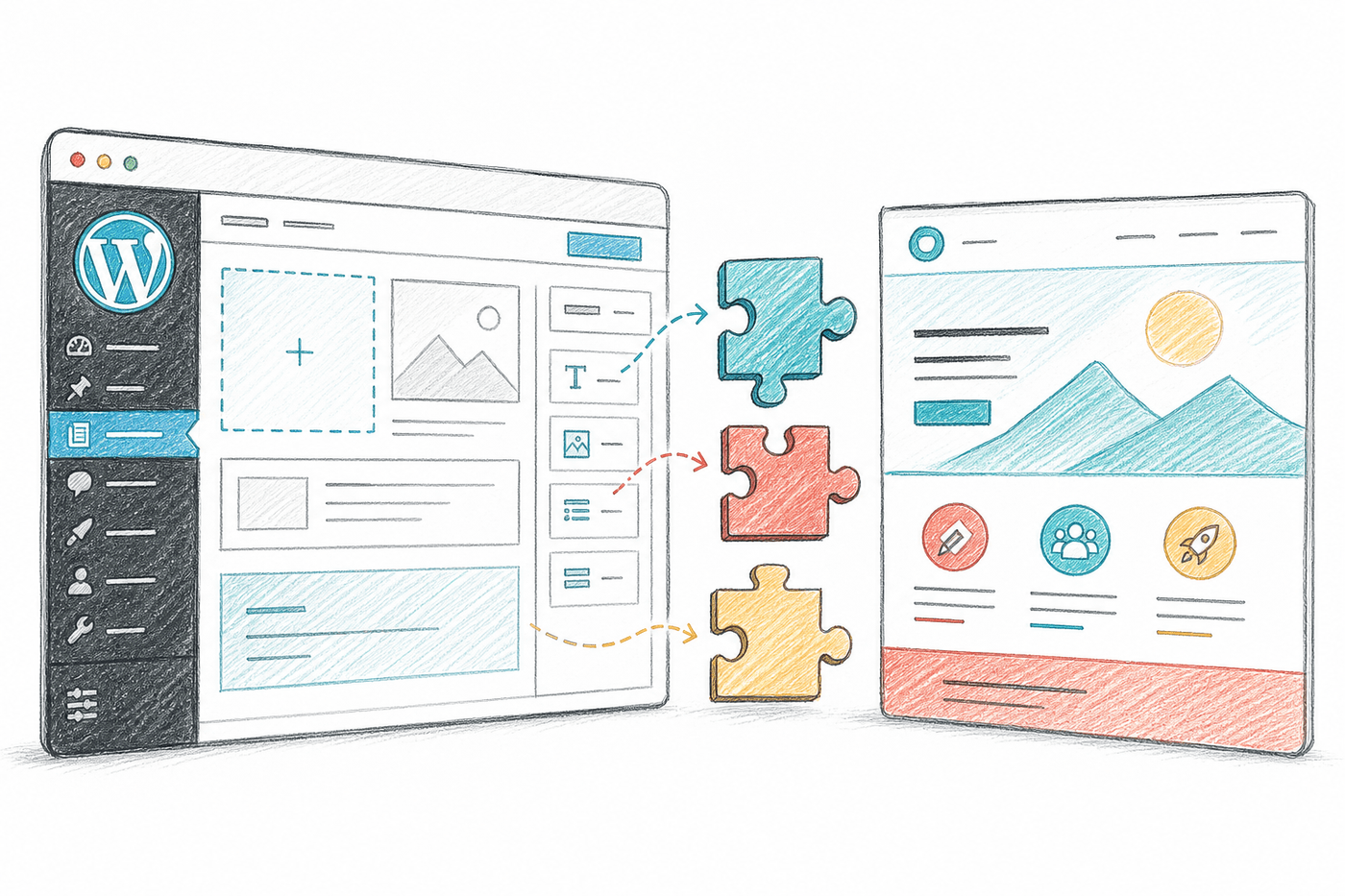
Four main components
1. WordPress Core
Core is the main software handling fundamentals such as
- user system
- posts and pages
- media library
- comments
- menus
- site settings
- REST API
- updates
- themes and plugins
Keep WordPress Core updated for bug fixes, features, and security patches.
2. Database
WordPress stores content, settings, user accounts, and plugin data in a database.
When someone opens a page, WordPress pulls relevant data and assembles the page.
Back up and maintain the database — do not rely on site files alone.
3. Theme
Themes control appearance and layout, such as
- colors
- fonts
- header and footer
- post layouts
- product pages
- mobile layout
Switching themes can change design without deleting core content — but heavy theme-specific features may need rework when you switch.
4. Plugin
Plugins add capabilities to WordPress, for example
- contact forms
- online stores
- booking systems
- membership
- SEO
- cache
- firewall
- backups
- CRM integration
- multilingual support
Plugins save development time, but do not install everything you find — each plugin adds code, maintenance, and compatibility risk.
How is WordPress.com different from WordPress.org?
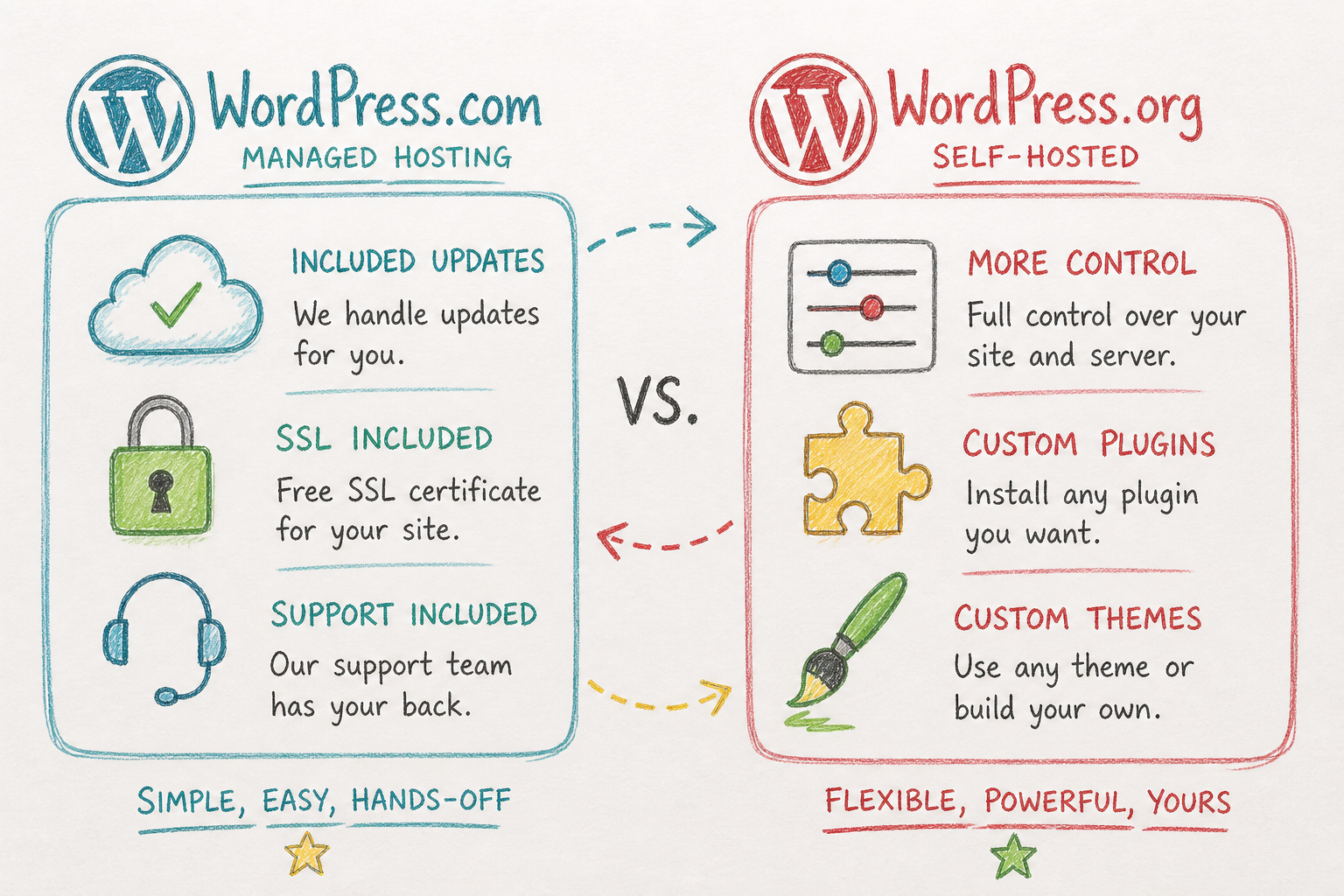
Both names use the same WordPress software, but hosting and responsibility differ.
What is WordPress.com?
WordPress.com is a website builder with managed hosting.
The provider handles much of
- hosting
- system updates
- baseline security
- backups
- SSL
- performance infrastructure
- customer support (by plan)
The upside is easier start and less server management — good when you want lower technical burden.
WordPress.com has free and paid plans. In 2026, paid plans support plugin installation, but capabilities and resources vary by tier.
What is WordPress.org?
WordPress.org is the open-source project site. You download the software and install it on hosting you choose.
This is self-hosted WordPress.
You get more freedom to
- choose hosting
- customize code
- install themes and plugins
- connect external systems
- configure servers
- manage databases
- set up deployment
- tune performance and security
More freedom means more responsibility — you or your team must handle hosting, backups, updates, security, and troubleshooting.
See WordPress.com vs WordPress.org for current differences.
Comparison table: WordPress.com vs WordPress.org
| Topic | WordPress.com | WordPress.org |
|---|---|---|
| Hosting | Included | Choose and pay separately |
| Setup | Sign up and build | Install on a server |
| Maintenance | Provider handles much | Site owner or developer |
| Customization | Depends on plan | High flexibility |
| Plugins | On paid plans | Install what you need |
| Themes | Per plan | Install or build your own |
| Performance | Provider infrastructure | Depends on hosting and build |
| Support | Per plan | Community, host, or developer |
| Best for | Turnkey with less upkeep | Control and scalable systems |
Neither option wins every case — choose based on control you need and willingness to maintain the stack.
What can you build with WordPress?
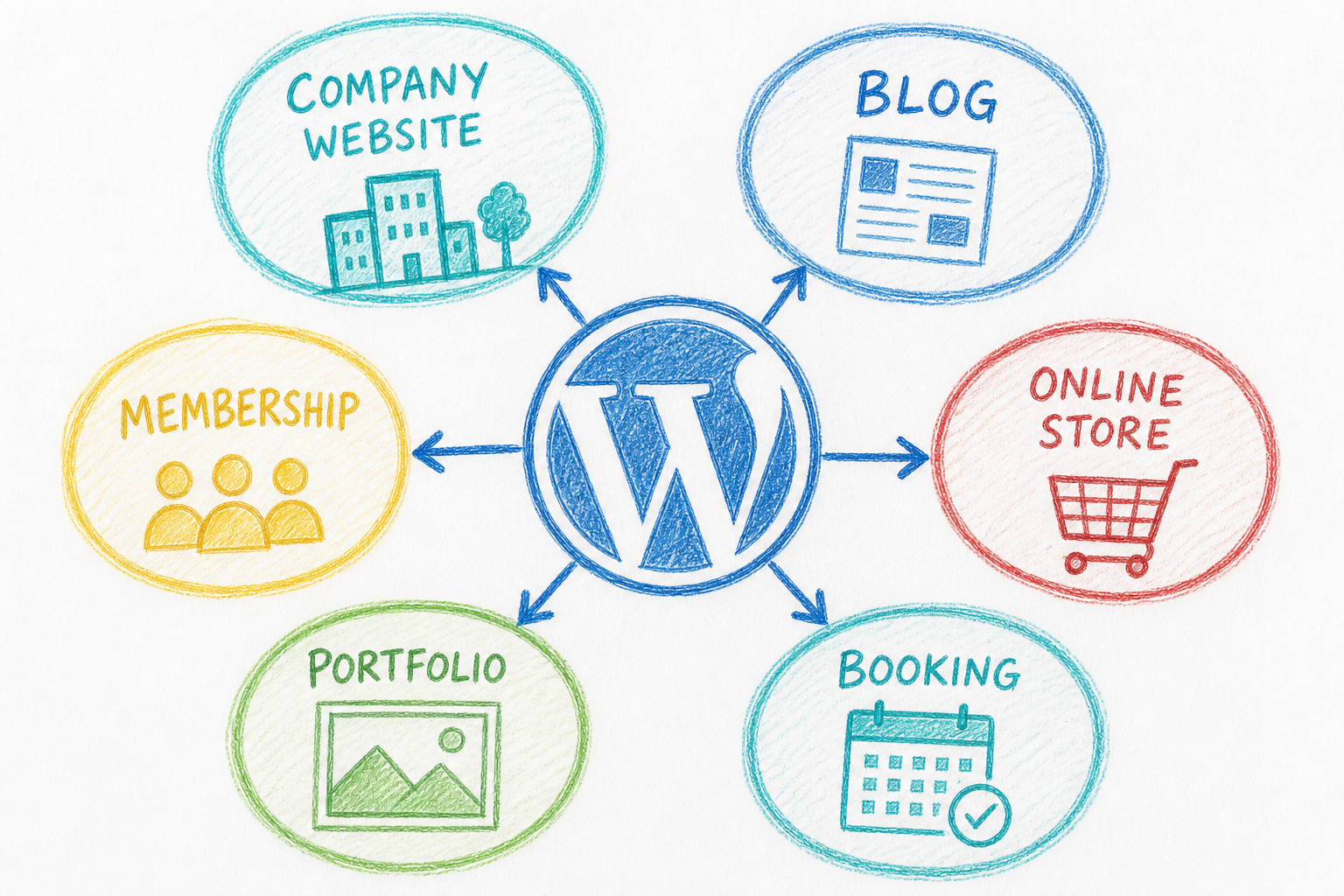
WordPress supports many site types through themes, plugins, custom post types, and APIs.
Company websites
Good for presenting
- company information
- products and services
- portfolio work
- case studies
- team
- news
- contact forms
Marketing teams can update content without waiting on a developer for every change.
Service sites and lead generation
Service businesses can build service pages, SEO articles, and landing pages for leads.
Examples include
- consultancies
- accounting firms
- factories
- clinics
- schools
- law firms
- contractors
- real estate
Lead performance depends on offer, content, UX, speed, and conversion tracking — not WordPress alone.
Blogs and news sites
WordPress began as blogging software, so article tooling is mature
- posts
- categories
- tags
- authors
- revisions
- scheduling
- comments
- RSS feeds
Suited to publishers with ongoing content and multiple authors.
Online stores
Add e-commerce through WooCommerce or other tools.
Capabilities may include
- products
- variants
- inventory
- cart
- coupons
- payments
- shipping
- orders
- customer accounts
WooCommerce fits stores that want strong storefront and content control — but owners carry more hosting, security, update, and plugin compatibility work than on hosted commerce platforms.
Membership and online courses
WordPress can power
- memberships
- online courses
- exams
- member-only content
- communities
- subscriptions
Before choosing a plugin, check payments, reporting, user roles, data privacy, and scale.
Portfolio sites
Designers, photographers, architects, and freelancers can showcase work plus blog and contact pages in one system.
Booking and events
You can add
- appointments
- room booking
- service booking
- ticket sales
- event schedules
- notifications
Systems tied to payments or sensitive data need thorough workflow, security, and backup testing.
Headless CMS and web applications
Developers can use WordPress as a headless CMS, sending data via REST API to frontends built with other tech.
Flexible, but adds complexity around development, preview, cache, deployment, and SEO — not needed for most standard business sites.
Advantages of WordPress
1. Easy content management
The block editor feels closer to a document tool than raw code.
Content and marketing teams can work without editing source files for every tweak.
2. Flexible and expandable
Themes, plugins, APIs, and hooks support customization.
Start with a small company site and add articles, languages, membership, or e-commerce later — if structure is planned well from the start.
3. Open source
WordPress uses the GPL license — study, modify, and use commercially.
You are not locked to a single developer forever, though team changes need documentation and full access handoff.
4. Large ecosystem
WordPress has
- developers
- hosting companies
- themes
- plugins
- documentation
- courses
- communities
- WordCamp events
Finding help or troubleshooting is often easier than on niche proprietary systems.
5. Multiple user roles
Roles such as Administrator, Editor, Author, Contributor, and Subscriber let organizations separate admins from content authors — reducing risk from giving everyone full admin access.
6. SEO-friendly foundations
WordPress supports URLs, titles, headings, alt text, internal links, and publishing workflows.
Plugins like Yoast SEO, Rank Math, or SEOPress add controls — but they are configuration tools, not automatic ranking systems.
Read fundamentals at what is SEO.
Disadvantages and limitations
1. Ongoing maintenance
Self-hosted sites need updates for
- WordPress core
- themes
- plugins
- PHP
- database
- server
- security rules
Stale stacks increase security and compatibility risk.
2. Quality depends on implementation
Well-built WordPress can be fast, secure, and maintainable.
Sites with dozens of plugins, heavy themes, or poor standards may be slow, hard to fix, and brittle after updates.
Choosing WordPress does not guarantee quality by itself.
3. Plugin conflicts
Plugins come from many vendors — one update can break a theme or another plugin.
Business sites should test updates on staging before production.
4. Security responsibility
Popular software attracts bots and attackers.
Risk often comes from
- outdated plugins or themes
- weak passwords
- too many admin accounts
- untrusted plugin sources
- poor hosting configuration
- no backups
- no malware monitoring
5. Costs can grow with complexity
Free software does not mean a free website.
Premium plugins, custom design, integrations, hosting, and maintenance can exceed turnkey platform costs.
6. Not for every system
WordPress may be wrong for
- extremely high-volume transaction systems
- apps with complex bespoke logic
- specialized real-time systems
- big data platforms
- internal systems with strict infrastructure control
Some projects fit custom apps, SaaS, or specialized platforms better.
Is WordPress good for SEO?
WordPress supports SEO well — but does not outrank other platforms simply because you use WordPress.
Google evaluates what it can access and process — not CMS brand names.
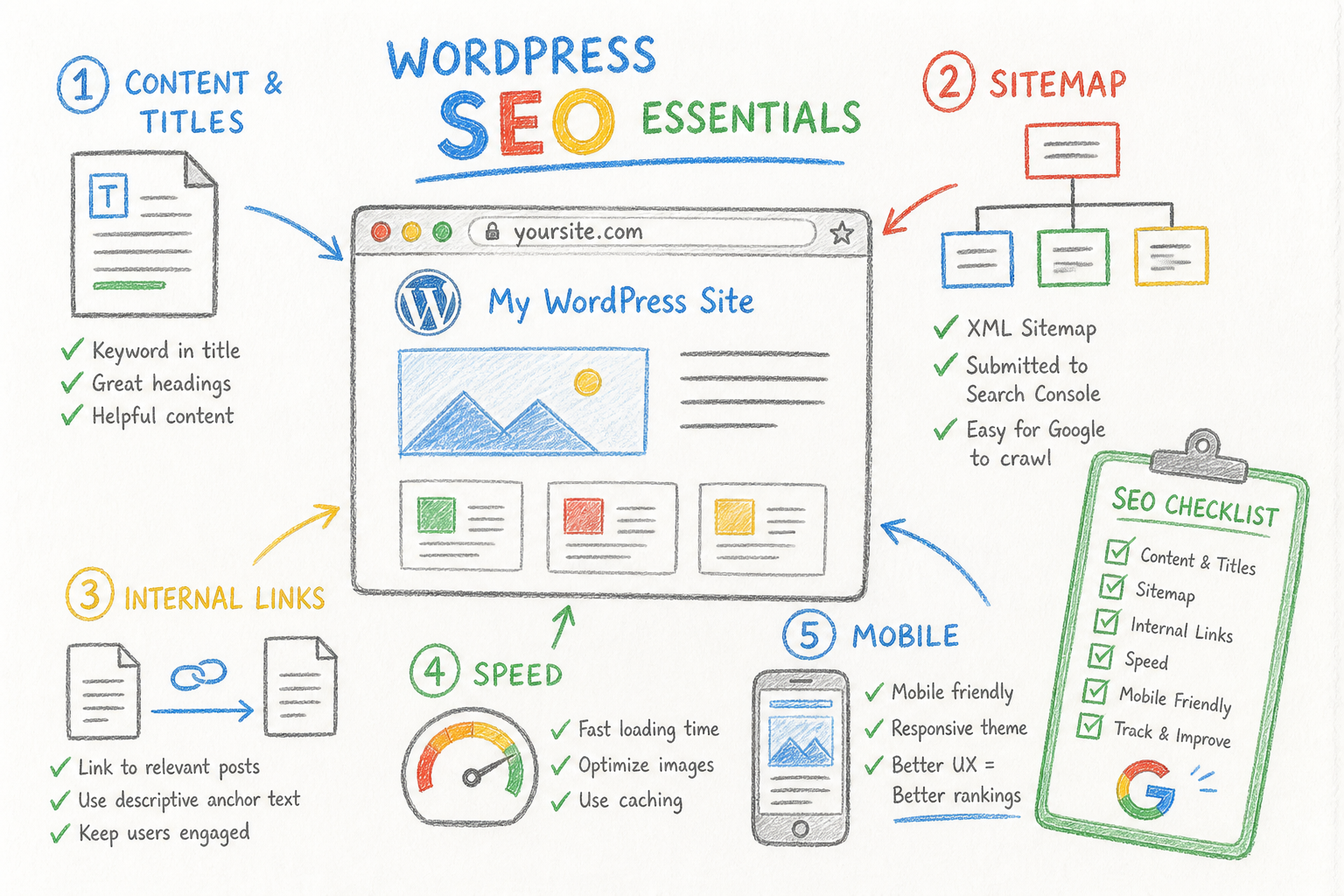
Where WordPress helps
- easy content creation and updates
- title and meta description management
- XML sitemaps
- canonical tags
- redirects
- structured data
- internal links
- alt text
- content categories
- Search Console and analytics integration
Your site still needs
- content that matches search intent
- clear site structure
- good speed
- solid mobile UX
- crawlable and indexable pages
- internal linking
- trust signals
- conversion measurement
Green lights in an SEO plugin are not the same as SEO success.
For structure through content, see SEO services and technical SEO.
Is WordPress suited to AI search?
AI search does not pick sites because they use WordPress — but WordPress can support foundations that work for search engines and AI systems.
Content ready for AI search should
- answer the main question directly
- use descriptive headings
- keep key information in text
- include original data or first-hand experience
- show author and update date
- cite credible sources
- link related pages internally
- use structured data that matches on-page content
- load fast and work on mobile
- allow bots you want per site policy
WordPress can manage these — when configured and written correctly.
You do not need many “AI SEO plugins” or separate pages for every question variant. Clear, accurate, uniquely valuable content matters more.
Is WordPress free?
WordPress.org is free to download, but launching a real site has several cost layers.
Basic costs
- domain
- hosting
- SSL if not included
- theme
- plugins
- backups
- security
- maintenance
Development costs
Depends on
- page count
- custom design
- languages
- e-commerce
- membership
- CRM integration
- payment gateways
- data import
- SEO migration
- performance and security level
Ongoing costs after launch
- domain and hosting renewal
- plugin renewals
- monitoring
- backups
- updates
- bug fixes
- content improvements
- new features
Compare total cost of ownership — not day-one build price alone.
Do you need to code?
Basic tasks need no code, such as
- adding posts
- editing text
- changing images
- building menus
- installing themes
- installing plugins
- creating basic pages
Code helps when you
- customize design
- fix responsive issues
- build plugins
- create custom post types
- connect APIs
- tune databases
- improve performance
- patch vulnerabilities
- debug plugin conflicts
Page builders reduce coding for layouts but do not remove all technical complexity.
Is WordPress secure?
WordPress can run securely with proper design and upkeep.
Basics include
- update core, themes, and plugins
- remove unused themes and plugins
- install extensions from trusted sources
- use unique passwords and 2FA
- limit administrator accounts
- use HTTPS
- back up off the primary server
- test backup restoration
- limit login attempts
- use firewall and malware monitoring
- disable unused accounts
- test updates on staging
WordPress recommends PHP 8.3+, MariaDB 10.11 or MySQL 8.0+, and HTTPS — see WordPress requirements.
How to start a WordPress website
1. Define goals
Clarify what the site must do, such as
- build credibility
- capture leads
- sell products
- accept memberships
- publish articles
- support multiple languages
Goals affect platform choice, hosting, themes, plugins, and budget.
2. Choose WordPress.com or self-hosted
Pick WordPress.com to reduce maintenance burden.
Pick self-hosted WordPress for more control over hosting, code, and integrations — and accept more upkeep.
3. Register a domain
A good domain is
- short
- memorable
- easy to spell
- free of trademark issues
- flexible as the business grows
- not tied to a temporary product name
You do not need keywords stuffed into the domain for rankings.
4. Choose hosting
Consider
- server location
- PHP and database versions
- storage
- traffic limits
- backups
- staging
- CDN
- security
- support
- uptime
- scaling
- renewal pricing
The cheapest host may cost more if the site is slow, unstable, or lacks usable backups.
5. Plan site structure
Define pages and relationships before design.
Example business structure
- home
- about
- services
- service detail pages
- portfolio
- case studies
- blog
- contact
- privacy policy
Good structure helps users, SEO, and future expansion.
6. Choose themes and plugins carefully
Pick themes that
- update regularly
- work on mobile
- load fast
- meet basic accessibility
- support the block editor
- have documentation
- avoid hard-to-migrate shortcode lock-in
Before installing a plugin, ask
- is it truly needed?
- when was it last updated?
- does it support current WordPress?
- is it actively maintained?
- what personal data does it store?
- how does it affect performance?
- can you export data if you stop using it?
7. Create content and set up measurement
Before launch, have
- complete home page content
- titles and meta descriptions
- internal links
- compressed images
- alt text
- Google Search Console
- analytics
- conversion tracking
- sitemap
- robots.txt
- cookie and privacy policies as needed
8. Test before launch
Check
- mobile and desktop
- forms
- email notifications
- payments
- broken links
- page speed
- 404 page
- redirects
- indexing settings
- backups
- user permissions
- security headers
- structured data
How is WordPress different from Wix, Shopify, and custom sites?
| Platform | Strengths | Limitations | Best for |
|---|---|---|---|
| WordPress | Flexible; strong content and SEO control | Requires maintenance | Business sites, content, scalable systems |
| Wix and turnkey builders | Easy start; hosting included | Less deep customization | Small sites that need to launch fast |
| Shopify | Ready-made e-commerce | Platform fees and limits | Online stores focused on selling |
| Custom website | Built for exact needs | Higher budget, time, and team | Specialized apps or workflows |
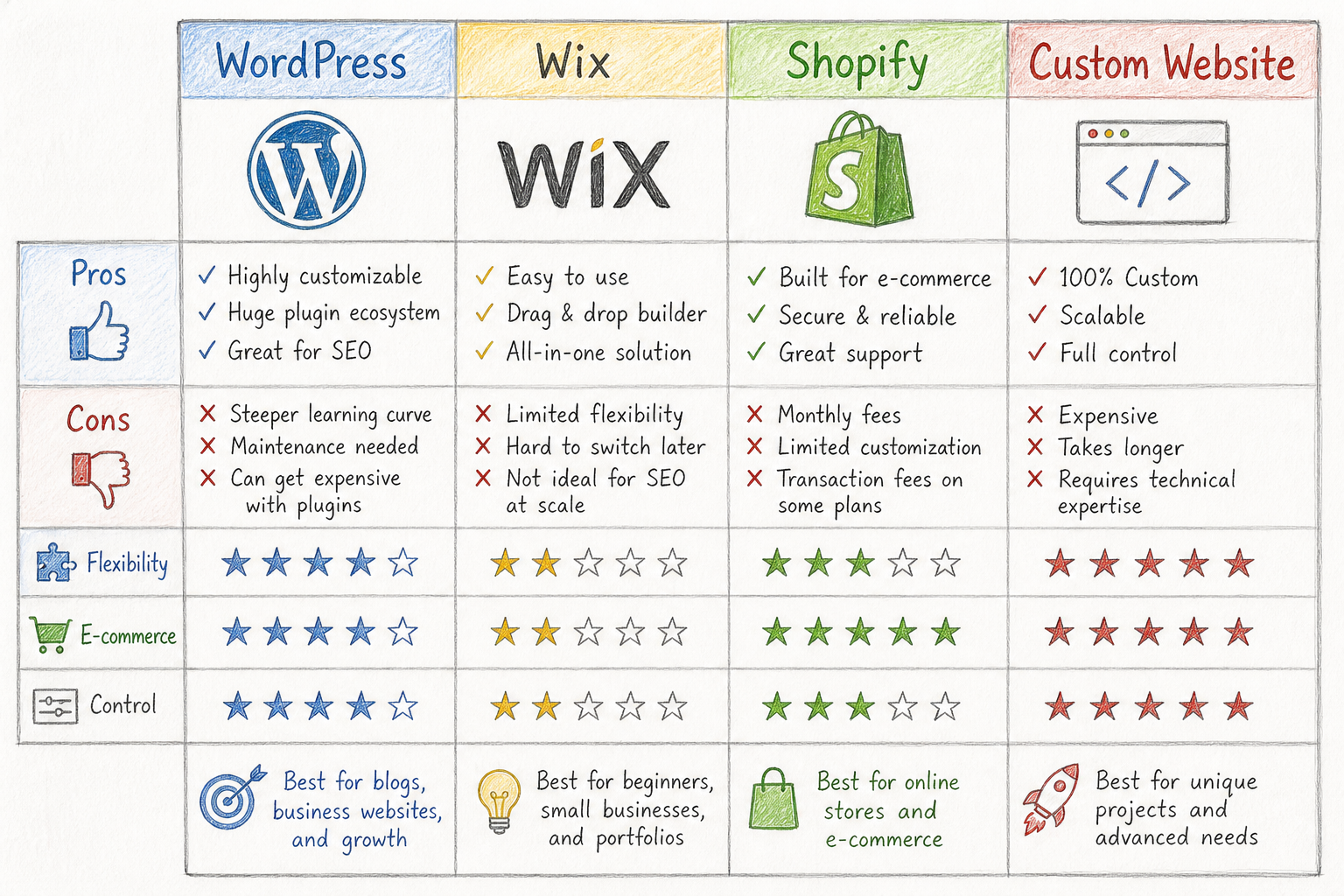
Do not choose from platform hype alone — match goals, complexity, and maintenance capacity.
Who is WordPress for?
WordPress fits
- SMEs needing company sites
- service businesses capturing leads
- companies doing content marketing
- sites planning SEO
- news and publishers
- schools and institutions
- clinics
- B2B companies
- small to mid-size online stores
- teams that edit content in-house
- businesses planning to expand the site
See results from site rebuilds and technical SEO in the Sprouts International Kindergarten case study.
Who should consider alternatives?
Look elsewhere when
- you only need a very simple page with no growth plans
- nobody can maintain the site
- you refuse update or security responsibility
- you need highly complex application logic
- transaction volume is very high
- you need specialized real-time systems
- you want hosted commerce live very fast
- your team lacks WordPress skills and will not hire support
A simpler platform may be cheaper if WordPress flexibility goes unused.
Checklist before hiring a WordPress build
Ask developers or agencies
- custom theme or off-the-shelf theme?
- which plugins are used?
- who owns domain and hosting?
- who holds theme and plugin licenses?
- is there staging?
- where are backups stored?
- have backups been tested for restore?
- who handles updates?
- what is the bug warranty period?
- will they support SEO migration?
- will analytics and conversion tracking be installed?
- will you receive all source code and accounts?
- what happens if you change vendors?
- what are annual recurring costs?
Register domain, hosting, and critical accounts to the business — not only a contractor’s personal account.
Summary
WordPress is an open-source CMS that lets you create, edit, and publish content without rebuilding the entire site each time.
Key strengths
- easy content management
- high customization
- many site types supported
- large theme and plugin libraries
- big community
- SEO and online marketing support
- room to expand later
The tradeoff is ongoing update, security, backup, and performance care — especially for self-hosted WordPress.
WordPress is not the best answer for every site, but it remains strong for businesses that want content control, SEO, leads, and long-term growth.
To structure a site for SEO, performance, and conversion, see WordPress website services.
Frequently asked questions
What is WordPress?
WordPress is an open-source content management system (CMS) that lets you create, edit, and manage a website through an admin dashboard without rebuilding the entire site by hand each time.
Is WordPress free?
WordPress.org software is free to download and use, but a live site still costs domain, hosting, themes, plugins, development, and maintenance.
How is WordPress.com different from WordPress.org?
WordPress.com bundles hosting and much of the technical upkeep. WordPress.org is software you install on hosting you choose — more control, but you own more of the maintenance.
Do you need to code to use WordPress?
Basic tasks do not require code, but custom design, integrations, or advanced fixes may need HTML, CSS, JavaScript, or PHP.
Is WordPress good for SEO?
WordPress supports SEO well when structure, content, speed, and technical SEO are set up correctly — but installing WordPress or an SEO plugin does not rank a site automatically.
Is WordPress secure?
WordPress can run securely when core, themes, and plugins are updated, passwords are strong, user access is limited, backups exist, and hosting is configured properly.
Is WordPress good for small businesses?
Yes — especially businesses that need a company site, SEO content, lead capture, or an online store they can grow over time.